

AI Integration Quick Reference
AI Integration Quick Reference
Generate Call Token
A call token is required for secure access to a call session. Each token is unique to a specific session and user combination, ensuring that only authorized users can join the call. You can generate the token just before starting the call, or generate and store it ahead of time based on your use case.- In the Ringing flow, the session ID comes from the
Callobject after the call is accepted. - For direct sessions, generate your own unique session ID.
- TypeScript
- JavaScript
The
Promise resolves with an object containing a token property (string) that you pass to startSession().
Start Call Session
Use thestartSession() method to join a call session. This method requires:
- A call token (generated in the previous step)
- A
CallSettingsobject that configures the call UI and behavior - An HTML element where the call UI will be rendered
- TypeScript
- JavaScript
Call Settings
Configure the call experience using the followingCallSettingsBuilder methods:
End Call Session
How you end a call depends on whether you’re using the Ringing flow or a direct session.Ringing Flow
When using the Ringing flow, you must coordinate between the CometChat Chat SDK and the Calls SDK to properly terminate the call and notify all participants.The Ringing flow requires calling methods from both the Chat SDK (
CometChat.endCall()) and the Calls SDK (CometChatCalls.endSession()) to ensure proper call termination and participant notification.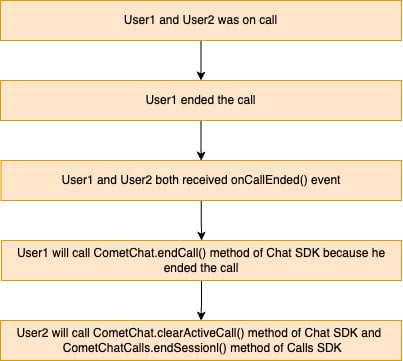
onCallEndButtonPressed() callback is triggered. You must call CometChat.endCall() inside this callback to properly terminate the call and notify other participants. On success, call CometChat.clearActiveCall() and CometChatCalls.endSession() to release resources.
- TypeScript
- JavaScript
onCallEnded() callback):
Call CometChat.clearActiveCall() to clear the local call state, then call CometChatCalls.endSession() to release media resources.
- TypeScript
- JavaScript
Session Only Flow
When using the Session Only flow (direct call without ringing), you only need to call the Calls SDK method to end the session. There’s no need to notify the Chat SDK since no call signaling was involved.- TypeScript
- JavaScript
Call Listeners
TheOngoingCallListener provides real-time callbacks for call session events, including participant changes, call state updates, and error conditions.
You can register listeners in two ways:
- Via CallSettingsBuilder: Use
.setCallListener(listener)when building call settings - Via addCallEventListener: Use
CometChatCalls.addCallEventListener(listenerId, listener)to add multiple listeners
listenerId string. This ID is used to:
- Prevent duplicate registrations — Re-registering with the same ID replaces the existing listener
- Enable targeted removal — Remove specific listeners without affecting others
- TypeScript
- JavaScript
Events
For the full list of callbacks, their descriptions, and parameter shapes, see theOngoingCallListener reference.
The ringing flow methods (initiateCall(), acceptCall(), rejectCall(), endCall()) return Call objects.
In-Call Methods
These methods are available for performing custom actions during an active call session. Use them to build custom UI controls or implement specific behaviors based on your use case.These methods can only be called when a call session is active.
Switch Camera
Toggles between the front and rear camera during a video call. Only supported on mobile browsers.- TypeScript
- JavaScript
This method is only supported on mobile browsers. It has no effect on desktop browsers. Available since v4.2.0
Mute Audio
Controls the local audio stream transmission. When muted, other participants cannot hear the local user.true— Mutes the microphone, stops transmitting audiofalse— Unmutes the microphone, resumes audio transmission
- TypeScript
- JavaScript
Pause Video
Controls the local video stream transmission. When paused, other participants see a frozen frame or placeholder instead of live video.true— Pauses the camera, stops transmitting videofalse— Resumes the camera, continues video transmission
- TypeScript
- JavaScript
Start Screen Share
Starts sharing your screen or a specific application window with other participants.- TypeScript
- JavaScript
Stop Screen Share
Stops the current screen sharing session.- TypeScript
- JavaScript
Set Mode
Changes the call UI layout mode dynamically during the call. Available modes:CometChat.CALL_MODE.DEFAULT— Grid layout showing all participantsCometChat.CALL_MODE.SPOTLIGHT— Focus on the active speaker
- TypeScript
- JavaScript
Get Audio Input Devices
Returns a list of available audio input devices (microphones) asMediaDeviceInfo[].
- TypeScript
- JavaScript
Get Audio Output Devices
Returns a list of available audio output devices (speakers/headphones) asMediaDeviceInfo[].
- TypeScript
- JavaScript
Get Video Input Devices
Returns a list of available video input devices (cameras) asMediaDeviceInfo[].
- TypeScript
- JavaScript
Set Audio Input Device
Sets the active audio input device (microphone) by device ID.- TypeScript
- JavaScript
Set Audio Output Device
Sets the active audio output device (speaker/headphones) by device ID.- TypeScript
- JavaScript
Set Video Input Device
Sets the active video input device (camera) by device ID.- TypeScript
- JavaScript
Switch To Video Call
Upgrades an ongoing audio call to a video call. This enables the camera and starts transmitting video to other participants. The remote participant receives theonCallSwitchedToVideo() callback.
- TypeScript
- JavaScript
End Call
Terminates the current call session and releases all media resources (camera, microphone, network connections). After calling this method, the call view should be closed.- JavaScript / TypeScript
Utility Methods
Get Active Call
Returns the current activeCall object, or undefined if no call is in progress.
- TypeScript
- JavaScript
Clear Active Call
Clears the locally stored active call state. Call this after ending a call session.- TypeScript
- JavaScript
- TypeScript
- JavaScript
Next Steps
Default Calling (Ringing)
Implement calls with incoming/outgoing ringing UI
Recording
Record call sessions for playback
Video View Customisation
Customize the video layout and main video container
Call Logs
Retrieve and display call history