> ## Documentation Index
> Fetch the complete documentation index at: https://cometchat-22654f5b-docs-v6-beta2-flutter-uikit.mintlify.site/llms.txt
> Use this file to discover all available pages before exploring further.
# Recording (Beta)
> Implement call recording for voice and video calls using the CometChat JavaScript SDK, including start/stop controls, listeners, and accessing recordings from the Dashboard.
```javascript theme={null}
// Start recording
CometChatCalls.startRecording();
// Stop recording
CometChatCalls.stopRecording();
// Listen for recording events (in CallSettings)
const callListener = new CometChatCalls.OngoingCallListener({
onRecordingStarted: (event) => console.log("Recording started", event.user),
onRecordingStopped: () => console.log("Recording stopped"),
});
```
**Recordings are available on the [CometChat Dashboard](https://app.cometchat.com) → Calls section.**
Record voice and video calls for playback, compliance, or archival purposes. Recording is built on top of the [Call Session](/sdk/javascript/direct-call) — you add recording listeners to your call settings and optionally control recording programmatically.
## Setup
Add `onRecordingStarted` and `onRecordingStopped` callbacks to your `OngoingCallListener` when building call settings. These fire for all participants when any user starts or stops recording.
```typescript theme={null}
// Add listeners onRecordingStarted and onRecordingStopped to the startCall method
const defaultLayout = true;
const audioOnly = false;
const callListener = new CometChatCalls.OngoingCallListener({
onRecordingStarted: (event) =>
console.log("Listener => onRecordingStarted", event.user),
onRecordingStopped: (event) =>
console.log("Listener => onRecordingStopped", event.user),
});
const callSettings = new CometChatCalls.CallSettingsBuilder()
.enableDefaultLayout(defaultLayout)
.setIsAudioOnlyCall(audioOnly)
.setCallListener(callListener)
.build();
const htmlElement = document.getElementById("ELEMENT_ID");
CometChatCalls.startSession(callToken, callSettings, htmlElement);
```
```javascript theme={null}
// Add listeners onRecordingStarted and onRecordingStopped to the startCall method
const defaultLayout = true;
const audioOnly = false;
const callListener = new CometChatCalls.OngoingCallListener({
onRecordingStarted: (event) =>
console.log("Listener => onRecordingStarted", event.user),
onRecordingStopped: () =>
console.log("Listener => onRecordingStopped"),
});
const callSettings = new CometChatCalls.CallSettingsBuilder()
.enableDefaultLayout(defaultLayout)
.setIsAudioOnlyCall(audioOnly)
.setCallListener(callListener)
.build();
const htmlElement = document.getElementById("ELEMENT_ID");
CometChatCalls.startSession(callToken, callSettings, htmlElement);
```
```typescript theme={null}
// Add listeners onRecordingStarted and onRecordingStopped to the startCall method
const defaultLayout = true;
const audioOnly = false;
const callListener = new CometChatCalls.OngoingCallListener({
onRecordingStarted: (event) =>
console.log("Listener => onRecordingStarted", event.user),
onRecordingStopped: () =>
console.log("Listener => onRecordingStopped"),
});
const callSettings = new CometChatCalls.CallSettingsBuilder()
.enableDefaultLayout(defaultLayout)
.setIsAudioOnlyCall(audioOnly)
.setCallListener(callListener)
.build();
const htmlElement = document.getElementById("ELEMENT_ID");
CometChatCalls.startSession(callToken, callSettings, htmlElement);
```
The `onRecordingStarted` callback receives an event object — see the [`OngoingCallListener`](/sdk/javascript/all-real-time-listeners#ongoing-call-listener-calls-sdk) reference for the full shape.
The `onRecordingStopped` callback receives no arguments.
Always remove listeners when they're no longer needed (e.g., on component unmount or page navigation). Failing to remove listeners can cause memory leaks and duplicate event handling.
## Settings for call recording
## CallSettings Options
| Setting | Description |
| --------------------------------------------------------------- | ------------------------------------------------------------------------------------------------------------------------------------------------------------------------------------ |
| `showRecordingButton(showRecordingButton: boolean)` | If set to `true` it displays the Recording button in the button Layout. if set to `false` it hides the Recording button in the button Layout. **Default value = false** |
| `startRecordingOnCallStart(startRecordingOnCallStart: boolean)` | If set to `true` call recording will start as soon as the call is started. if set to `false` call recording will not start as soon as the call is started. **Default value = false** |
## Programmatic Control
If you're building a custom UI without the default layout, use these methods to control recording during an active call.
### Start Recording
You can use the startRecording() method to start call recording.
```typescript theme={null}
CometChatCalls.startRecording();
```
```javascript theme={null}
CometChatCalls.startRecording();
```
### Stop Recording
You can use the stopRecording() method to stop call recording.
```typescript theme={null}
CometChatCalls.stopRecording();
```
```javascript theme={null}
CometChatCalls.stopRecording();
```
## Downloading Recordings
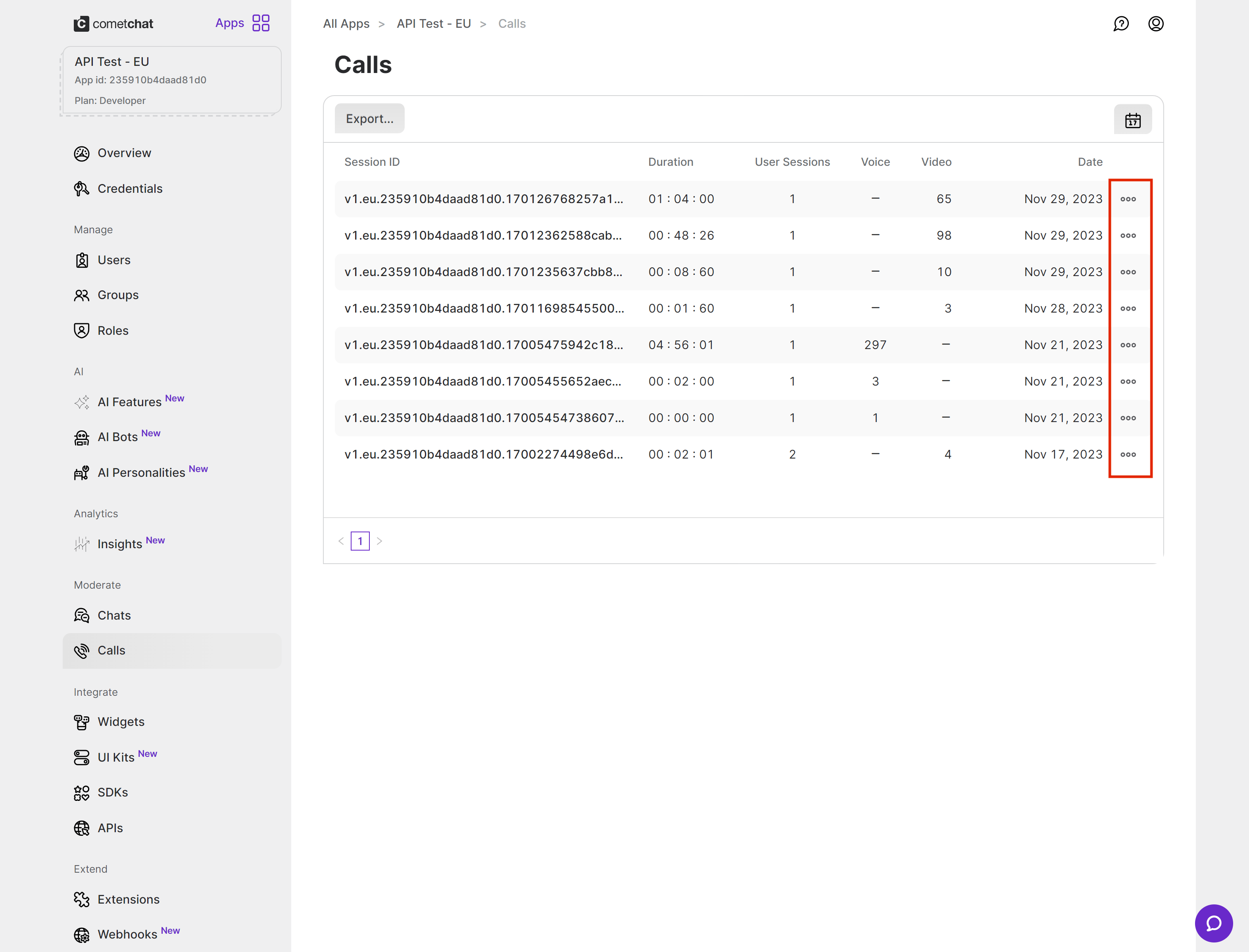
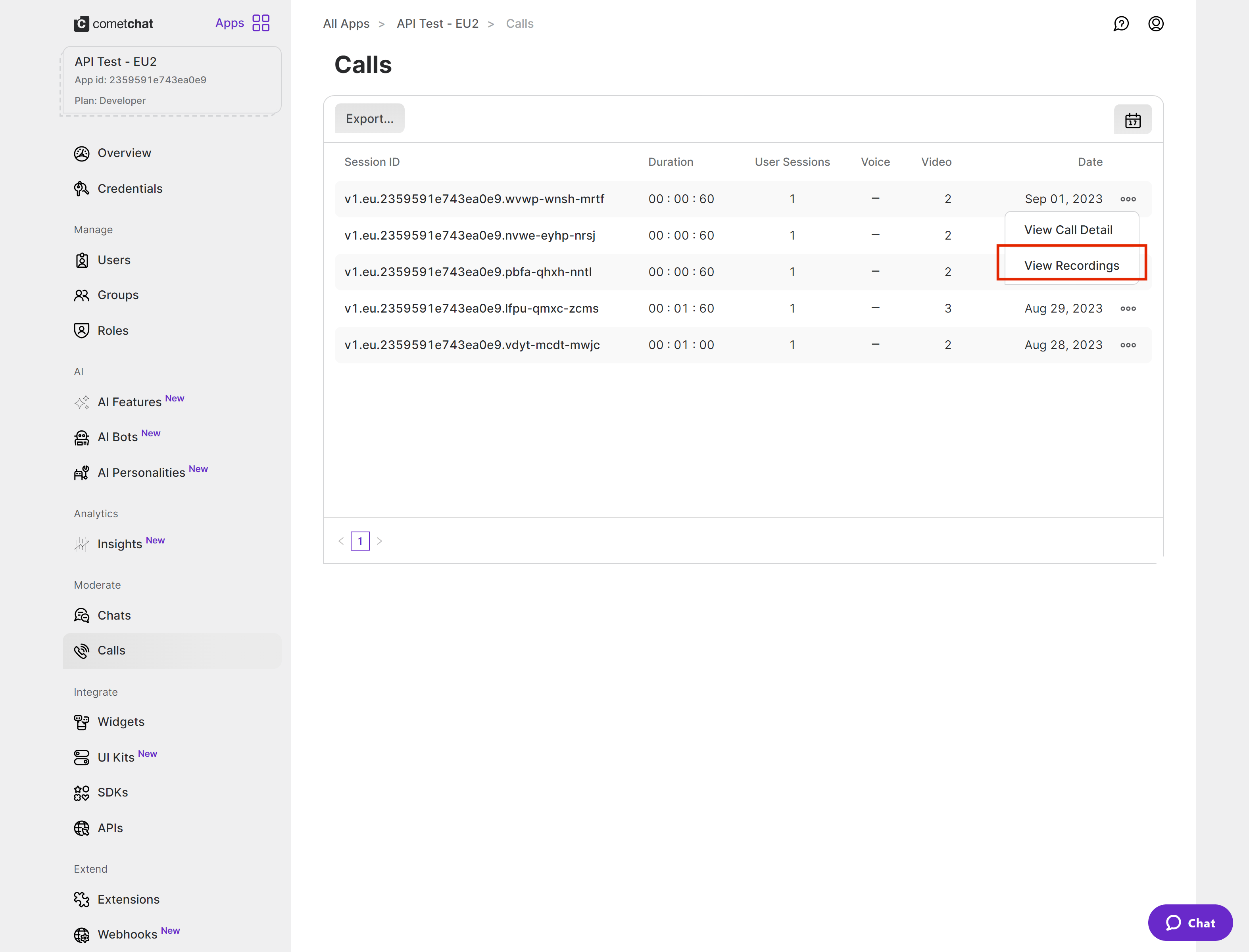
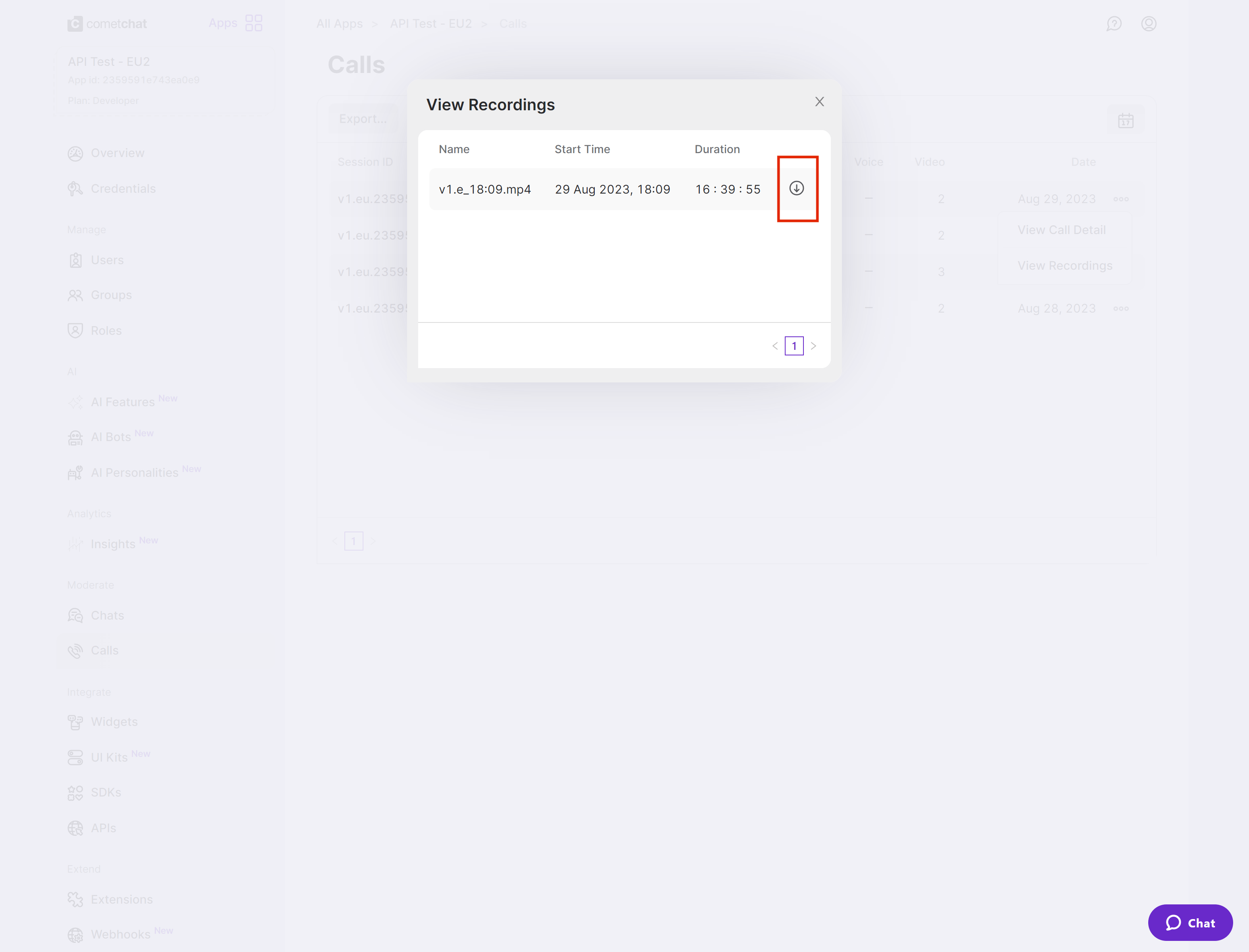
Call recordings are available on the [CometChat Dashboard](https://app.cometchat.com) under the Calls section. Click the three-dot menu and select "View Recordings".
 ***
## Next Steps
Implement ringing call flows with accept/reject functionality
Retrieve and display call history for users and groups
***
## Next Steps
Implement ringing call flows with accept/reject functionality
Retrieve and display call history for users and groups